WAFFLE-ASSIST

Search, pin, and launch Microsoft 365 apps from anywhere

Waffle-Assist adds a searchable Suite Bar to Microsoft 365, SharePoint, Outlook, Teams, OneDrive, and related admin surfaces. Pin the apps you use, add your own, optionally surface Admin Centers, and let it rank your most-used apps across the bar, popup, right-click menu, and new-tab launcher.

The current build also includes tenant-aware SharePoint links, per-site enablement, a right-click launcher with nested Pinned, Most used, and Admin Centers menus, and a customizable new-tab page with its own banner and background settings.

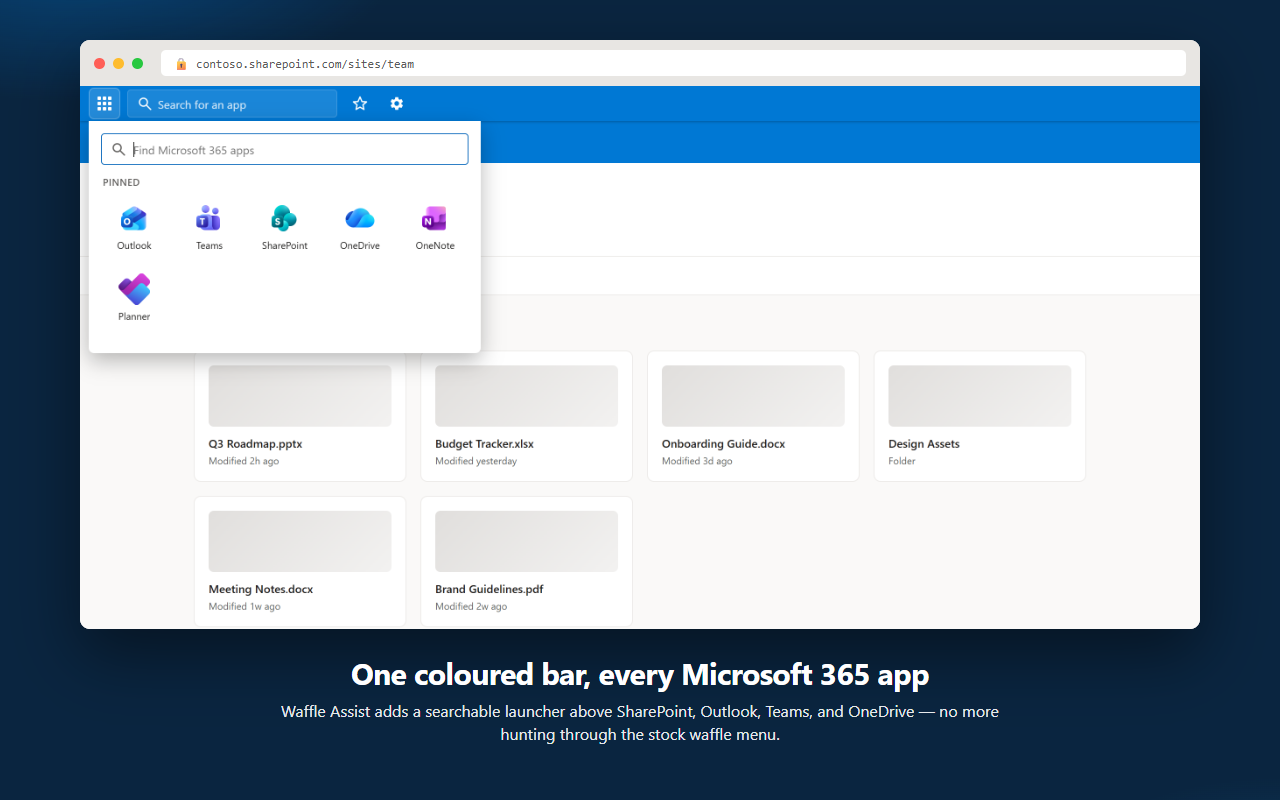
Waffle-Assist searchable Suite Bar with the app launcher open on a SharePoint site

How it works

No account, no sign-in — the Suite Bar just appears on the Microsoft 365 pages you already use.

  1. Install Waffle-Assist

    Add the extension, and the Suite Bar appears automatically the next time you open a supported Microsoft 365 page. The toolbar popup, right-click menu, and optional new-tab launcher are ready at the same time.

  2. Set it up your way

    Open the options page to pin any of 35+ apps, add your own links, turn on Admin Centers, set your SharePoint tenant prefix, choose which sites show the bar, and tune the Suite Bar, banner, and page colours.

  3. Launch from wherever you are

    Search from the bar or popup, or right-click the page to open Waffle Assist — Pinned, Most used, Admin Centers, All apps, and Options. Usage is tracked locally so your most-used apps surface themselves.

The Suite Bar reads the Microsoft 365 site you’re on to match its colour, the app catalog icons are bundled locally, and your settings and usage data stay in your browser.

Screenshots

Current UI shots from the live extension: the Suite Bar, popup and right-click launchers, new-tab home, and settings screens.

Most-used menu
Toolbar popup launcher
Right-click launcher
New-tab home
Settings — colours and banner
Settings — tenant routing
Settings — custom apps
Settings — site coverage

See It in Action

A short look at how Waffle-Assist fits into everyday Microsoft 365 work.

Capabilities

Searchable Suite Bar

A coloured launcher bar, injected right on the page you are already using.

  • Adds a bar above supported Microsoft 365 pages
  • Hides the stock Microsoft waffle where it can, so there is one consistent launcher
  • Live search in the bar and flyout stays in sync
  • Auto-detects the current site colour, or uses your own preset or custom hex code

Popup & Right-click

Launch from the toolbar popup, or right-click the page for a nested Waffle Assist menu.

  • Toolbar popup with search, pinned apps, most used, and optional Admin Centers
  • Right-click any supported page — Waffle Assist appears in Chrome’s context menu, with the same menu on the toolbar icon
  • Nested submenus for Pinned, Most used, and Admin Centers
  • Admin Centers submenu: Microsoft 365 Admin, Security, Purview, Identity, Azure, Exchange, SharePoint Admin, Teams Admin, and Power Platform
  • All apps… and Options… sit at the bottom of the same menu

Pinned & Custom Apps

Choose what shows up first — including apps Microsoft’s launcher can’t.

  • 35+ Microsoft 365 apps with bundled local icons
  • Pin favourites so they show first in the launcher, popup, and new tab
  • Add your own app with a name, URL, and colour
  • Edit saved custom apps later and optionally pin them immediately

Most Used

Learns what you actually open, and surfaces it without being asked.

  • Tracks launches locally in extension storage
  • Show most used as a menu or icons directly on the Suite Bar
  • Choose left or right placement for the icon row
  • Clear your usage history whenever you want

New Tab Home

An optional Microsoft 365-style landing page with your own branding controls.

  • Greeting, search, pinned apps, most used, Admin Centers, and a full all-app catalog
  • Banner colour and page background settings
  • Optional banner image by upload or URL
  • Uses the same pinned and usage data as the bar and popup

Admin Centers & Tenant Routing

Routes admin links correctly instead of sending you to a generic launch page.

  • Optional Admin Centers section is off by default
  • Security, Purview, Identity, Azure, Exchange, SharePoint Admin, Teams Admin, and Power Platform
  • Set a SharePoint tenant prefix such as contoso
  • SharePoint and SharePoint Admin open tenant-specific URLs

Sites & Modes

Choose where Waffle Assist appears and when it stays out of the way.

  • Per-site toggles for SharePoint, Office, Microsoft 365, cloud.microsoft, Outlook, Teams, OneDrive, and more
  • Azure Portal is included but disabled by default
  • Switch between the full Waffle Assist bar and Microsoft O365 Waffle mode
  • Turn the new-tab landing page on or off

Local-first

The extension keeps its app catalog and usage tracking inside the browser.

  • No runtime icon CDN calls or external app-catalog service
  • App usage is mirrored to a small site cookie for launcher shortcuts, plus extension storage
  • Nothing includes mail, files, or page content
  • No account creation or server-side sync required

Install Waffle-Assist

Waffle-Assist is free for Chromium-based browsers that support extensions.

  • Chrome
  • Brave
  • Vivaldi
  • Edge
  1. Find Waffle-Assist on the Chrome Web Store.
  2. Click Add to Chrome, then confirm with Add extension.
  3. Pin the toolbar icon (🧩 puzzle-piece menu → 📍 pin Waffle-Assist).
  4. Open any supported Microsoft 365 page, or a new browser tab, and start using the Suite Bar, popup, right-click menu, or launcher home page.

Get Started

Install Waffle-Assist from the official Google Chrome Web Store listing.

Chrome Web Store

Sign in to Google and leave a ⭐⭐⭐⭐⭐ review — it really helps.

If you know a colleague who’d benefit from Waffle-Assist, feel free to pass it along. It’s recommendations like these that help Waffle-Assist reach new users.

Did you find this useful?

Waffle-Assist is built and maintained in personal development time.

Hosting for this site and the Chrome listing also has ongoing costs.

If the extension saves you time, a small tip helps cover that — and maybe a few coffees.

Support me

Support

Questions, bugs, or feature ideas — reach out.

For how Waffle-Assist handles data, see the privacy policy.

About Waffle-Assist

Created by Chris O'Connor

Founder and Senior Technical Consultant at Kachihro

SharePoint expert for over 20 years — helping organisations design, build, and run Microsoft 365 solutions.